Save and Return replaces Form Login
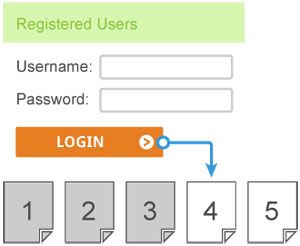
save-and-returnSave and Return is the new name for our Form Login feature. All existing functionality remains the same, only the name has changed to be more descriptive.

Save and Return Features

The Save and Return feature allows users to create accounts that are associated with their form results. A user can use their account to save a partial form result and return later to finish it, or to view past form results. You can create users’ accounts ahead of time, or allow users to create their own accounts. You can also customize how many times the user is allowed to return.

We have also added new functionality that allows you to manually assign (or reassign) a Save & Return account to an existing form result. To do this, go to your form’s “Results > Summary Table” page. Then, click on a result row’s Username column.

The Save & Return feature is available to all Pro 1 level or higher Formsite accounts.

Continue reading

Formsite Forms Now Use jQuery

Formsite is changing its JavaScript library to jQuery starting immediately. This decision was in response to customer feedback and is part of our long-term strategic goal to provide superior service, diligent security, and consistently current technology.

Since 1998, Formsite has progressed through several JavaScript libraries including YUI, YUI-Ext, ExtJS, and now jQuery. As the leading JavaScript library, jQuery is used by over half of the top websites in the world. It is faster, smaller, and more popular than anything we have used in the past.

jQuery and Formsite Customers

  • All new forms will immediately take advantage of the change.
  • Existing forms will be automatically upgraded the next time you load them in the form editor.
  • Unedited forms will continue to work unchanged.

Examples

jQuery signature

The new Signature item is an example of a new feature that was built with jQuery. This feature allows for an additional layer of verification and is able to capture a signature using a mouse, stylus, or finger (with a compatible touch-enabled device, of course).

jQuery progress bar

The new upload progress bar is another example of a new feature that was built with jQuery. As a file is uploaded, the progress bar updates in real-time to give users feedback on the upload process. For older browsers, there is a built-in fall-back that shows a generic waiting animation instead.

Continue reading

Google Checkout shutting down

google_checkout_closedGoogle has announced that it’s closing the doors on Google Checkout later this year. Google officially replaced its payment processor with Google Wallet in September of 2011 and has been encouraging merchants to transition to other forms of payment processing, such as PayPal or Authorize.net.

How will the Google Checkout shutdown affect Formsite customers?

Formsite no longer allows Google Checkout as a payment option for new forms and encourages all Google users to change their payment integration option as soon as possible.

Google Checkout users must transition to another payment processor according to Google’s schedule (before November 20, 2013).

Visit our documentation page for more information on Formsite payment processing options.

Continue reading

Fields and Buttons Get More Look & Feel Settings

Several exciting updates have been added to the Look & Feel page to help you style your form and fields.

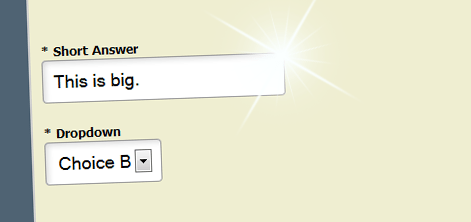
First, two new Look & Feel settings are now available to customize the size of text fields: “Field Font Size” and “Field Padding”. You can use these to make big, fluffy fields (or tiny, compact ones). This can be used to help attract attention to your form items, or to make them as concise as possible.

Look & Feel big fields.

Next, more Look & Feel options have been added to make fields and buttons rounder. Rounding can provide a nice, customized look to your form. Rounded corners will work in any modern browser, but please note that Internet Explorer 8 and below cannot support rounded corners.

Continue reading

New Way to Edit Success Pages

The Standard Success Page format has been updated to use a full HTML editor in place of the simple text editor and preview section. This new format allows for more flexibility to customize your Success Pages for a form. You may replace the ‘Green Check’ image with your own custom image and can use the ‘HTML’ icon to the far right to add custom code. Existing Success Pages will automatically show up in the new editor.

A new ‘Reset’ link has also been added to both the ‘Standard’ and ‘Custom’ Success Page formats. This can be used to reset the contents of the ‘Message’ section to the default image and text. For example, if you remove the ‘Green Check’ image but want to get it back, you may use the ‘Reset’ link.

For more details on our Success Pages, please visit our documentation page.

Continue reading

Table Notification Format Improved

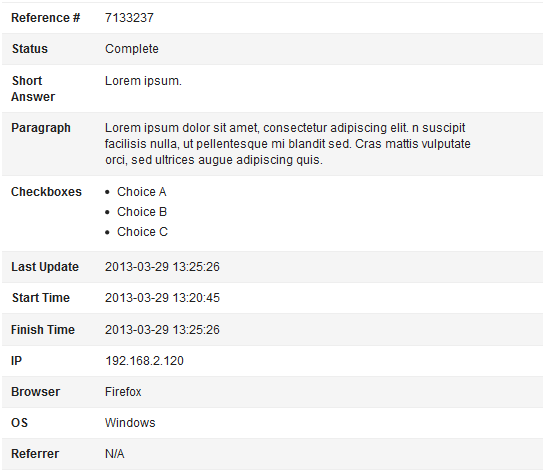
The Table Notification format has been improved with a new, modern style. Multiple choice questions now display answer choices as bullet lists. Matrix and Multi-Scale items now display separate rows for each sub-question. Combined, these Table improvements make answers for complex questions much easier to read.

notification-table

Row colors alternate for each item. Multiple rows for a single item share the same color. Required questions are denoted with a red star.

All of these improvements help to make the Table email format look great in a wide variety of email programs. You can get started using the Table format for your emails at the Form -> Notifications page.

Continue reading

Instant Demo of FormSite

We have added the ability to jump right into an instant demo of Formsite.com with just the push of a button.

instant demo

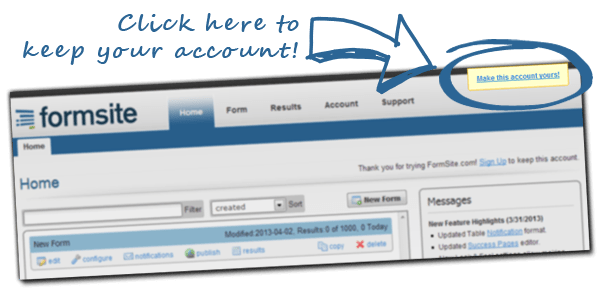
Click this to preview a Formsite account and try out our celebrated form builder and other great features. This lets you use a temporary account to see everything Formsite has to offer. When you’re ready, you can simply sign up from inside of this account to keep it as your own, along with any forms or results contained within.

sign up to keep your instant demo account

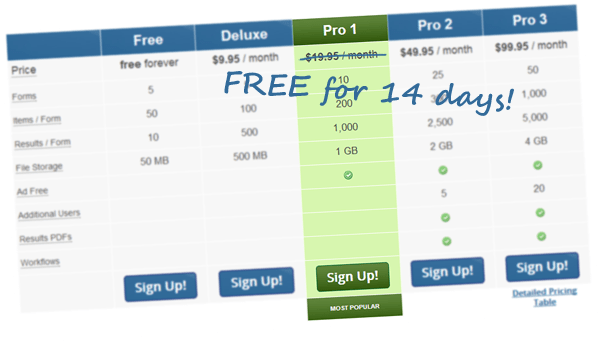
You can also sign up for a regular account, including a free 14-day trial of the Pro 1 level of service, HERE.

Continue reading

How to Make Image Buttons

Formsite has some advanced options that you can use to display an image as your form’s submit button.

First, you will need an image to use. Upload an image on your account’s “Account -> Files & Images” page. Then, copy the URL to where the image has been stored in your account. Keep this URL for later.

Big button.

Next, edit your form and go to the Look & Feel page. On the Look & Feel page, go to the Advanced tab. The Advanced tab allows you to directly edit your form’s CSS. Find the section for “.submit_button”, this CSS class controls your form’s submit button. Replace this entire section with the following:

.outside_container .submit_button {
background: url(/example/images/big-button.png);
border: none;
padding: 0;
height: 150px;
width: 150px;
}

Set the background to be the URL to your image. Set the height and width to match your image’s size. Then, save the Look & Feel page.

Lastly, go to your form’s “Form -> Custom Text -> Custom Text” page. Find the “Submit” label for the submit button and replace it with a single space. This will remove the label text from the button so that it will not obscure the image.

custom-submit

Continue reading

New Pro Trial Account Option

We have added a new option when signing up for a new account: Pro Trial. This is a complimentary 14-day trial of Pro 1, our most popular level of service.

Complimentary 14-day Pro Trial

This new option will let you try out Professional-level features, including:

There are no commitments and no obligation to renew. The trial lasts for 14 days. You are free to upgrade to a paid level of service at any time, letting you keep access to all of the features and limits of the Pro level. If the trial completes and you choose not to upgrade or renew, your account will simply revert back to the Free level of service, leaving your forms and results intact.

If you have not tried Formsite yet, Sign Up for a new account today and take advantage of the new Pro Trial option!

Continue reading

Reports Feature has Arrived

Formsite has a new Reports feature. It allows you to share your form’s results with your users. This can be very useful. Reports can be viewed in two formats: Table format and Chart format.

Table Report Format

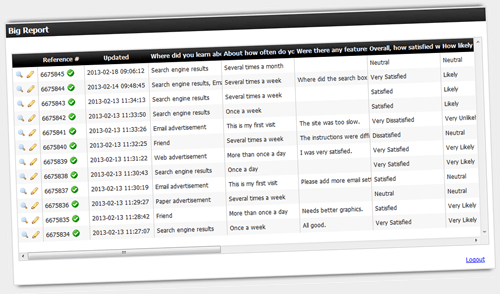
Table format shows your form’s results as a table. There is one row per result. The user can sort the table and resize the columns. You can optionally allow users to edit results from the table. All form data is available in the table. This includes: Order Form totals, Scoring totals, Form Login information, etc.

report-table

Chart Report Format

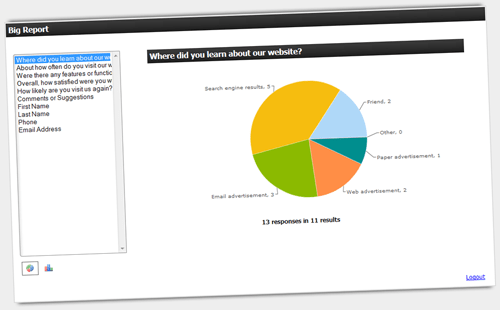
Chart format shows your form’s results as charts. There is one chart per form item. Users can select which item to view. The chart can be toggled to a pie chart or bar chart.

report-charts

Security

In cases where security is required, you can also add a password or restrict what data is included by using Views and Filters. You can create multiple reports with different settings and give them to different sets of users.

For more information, check out our graphs and tables for website forms.

Continue reading
Billions of forms submitted