Likert Scales Plus Other Rating & Ranking Survey Tools

The Likert scale is a common way of asking the level of agreement and disagreement the visitor has for a question, and should be familiar to anyone used to making or taking surveys. The basic format of the Likert scale is a 5-column answer, which choices like:

  • Strongly disagree
  • Disagree
  • Neither agree nor disagree
  • Agree
  • Strongly agree

Formsite Likert matrix item


Making a Likert scale is easily done using a regular Radio Button Matrix item and adding each question as a row, with each answer as a column heading. Additional items available for collecting survey data include:

  • Rating item
  • Ranking item
  • Star Rating item

When should you use each item?
Continue reading

Excel Tips for Working With Your Formsite Results

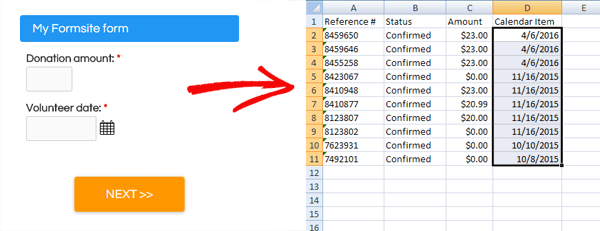
Your form results can be viewed in several ways, from individual results in Notifications to exporting as a complete spreadsheet. Exported spreadsheets can be opened by a few applications and the most common is Excel for both Mac and Windows operating systems. Google Sheets is a free alternative and is accessed through your browser, and most of these tips can be used interchangeably with both.

Formsite Excel results

If you’re brand-new to Excel, a good place to learn the basics is at Microsoft’s help and training pages at https://support.office.com/en-us/excel.

Working with your results in Excel can be an integral part of your data collection process, and here are some ways to make the most out of your results spreadsheets.

Continue reading

Reports Examples and Usage for Real-time Reporting

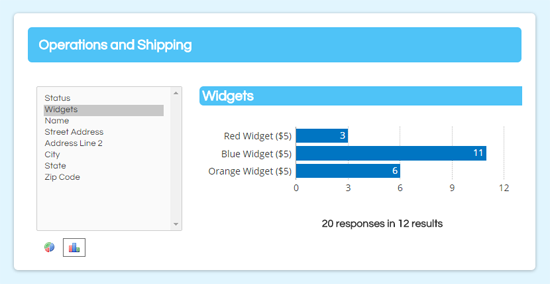
A popular Formsite feature is our Results Reports area that lets account owners give access to the form results without giving access to the account. Creating a report will show links to both a table and a chart display, which allows the viewer to choose from a few different formats.

Formsite Reports chart

Setting up Reports is as easy as giving the report a name and clicking the Save button (see the documentation page for a tutorial video showing the basic setup). Using the optional settings can expand the usefulness of the function. These settings include setting a password to restrict access, allowing edits to the results, and using Results Filters and Results Views for more focused reports.

Continue reading

Admin Item Usage and Tips for Better Online Forms

One of the most frequently misunderstood concepts is the Admin item setting on your Formsite form items. Using the Admin setting allows you to create form items that are for admin use only, but what does that mean and why would you use it?

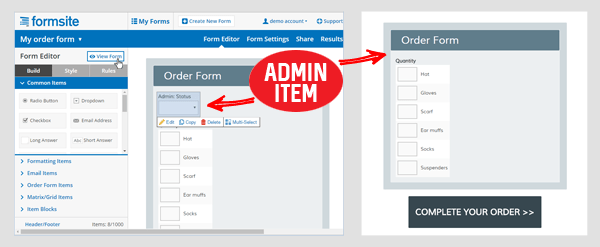
The Form Editor says that Admin items aren’t shown on your form. That means that the item will appear in your Results Table as part of the form, but the item itself will not appear on the form when the visitor completes the form.

Formsite Admin item

Uses for this feature include:

  • Creating an internal status or notes item for each result
  • Editing or removing items from the form without losing the recorded results
  • Triggering follow-up email notifications
Continue reading

Send Email Reminders for Uncompleted Forms – Updated

This article has been updated! Go to the new one >
Formsite form reminders email

A popular request is how to send email reminders when people don’t complete your form. The dilemma is how to trigger something based on something NOT happening. For customers looking for this ability, Formsite's Mailchimp integration and Mailchimp’s  Automation tools make it possible.

Let’s dive right in. You will need:

  • A Formsite form you want people to complete
  • A Mailchimp account
  • A list of email addresses for your visitors

The easiest way to start is by adding your emails to a new Mailchimp list, although you can use another form to make your list (more on that at the end). The order things will happen is:

  1. You send your Mailchimp Campaign with a link to your form to a list of email addresses
  2. When recipients click the link to visit the form, submitting the form records a value to the subscriber at Mailchimp
  3. After a set period of time, the reminders are sent to all subscribers without the value
Continue reading

Google Sheets Integration Setup & Top Tips

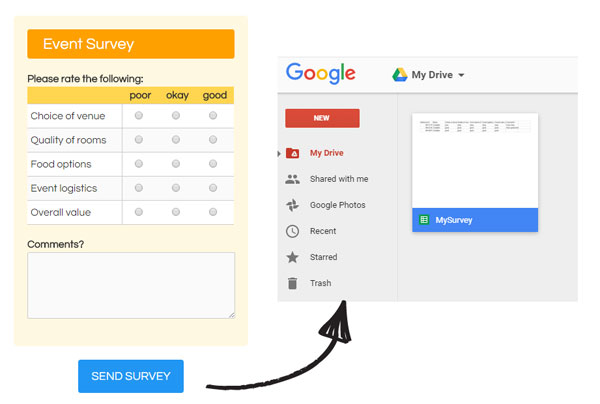
Connecting your form to Google Sheets is easy to set up and requires virtually no maintenance, making it one of the most popular integrations for Formsite members. Connecting your form to your Google account is an easy and dependable way to create an automated backup of your form results, along with many other benefits you may not realize.

Formsite Google Sheets integration

Continue reading

Rules Make Your Online Forms Smart & Efficient

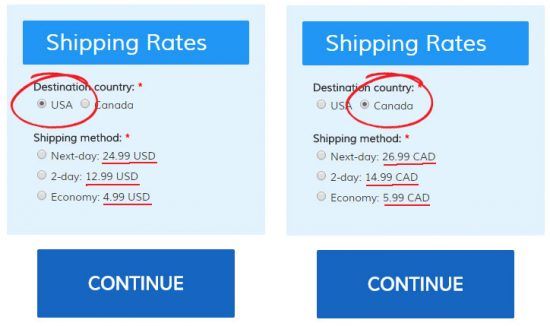
Your form’s Rules page is a list of actions your form will take while your visitors are completing your form. For example, say you offer shipping to both USA and Canada. If you have a question near the beginning of your form asking the visitor’s country, you can create a rule to show the appropriate items later in the form. Formsite online form rules
Continue reading

Word Mail Merge for Personalized Documents

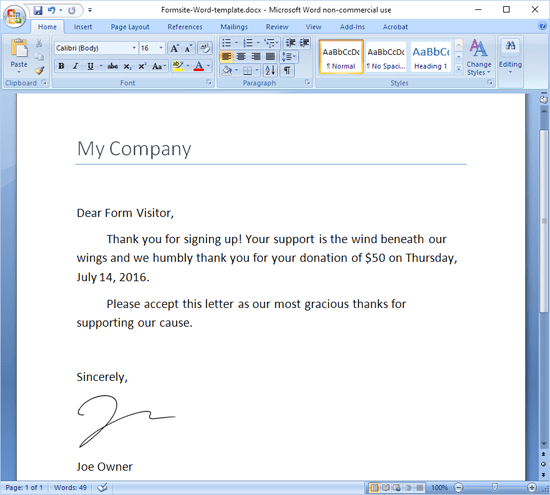
Do you have a need for making custom personalized documents in Microsoft Word using your Formsite results? Consider your donation form or registration form -- what if you could send every visitor a custom thank-you or confirmation letter with their information pre-filled?

Formsite Word template

You can! Simply export your Formsite results and use them as a data source in Microsoft Word, then add individual fields to your Word document for a totally customized version of the doc. You can then run the project when you’re ready and Word will automatically create all of your documents for you.

Continue reading

Responsive Forms Setup & Customization

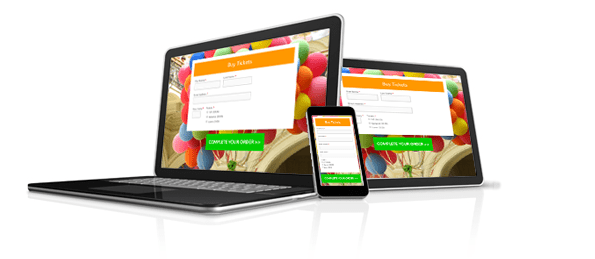
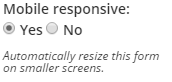
Mobile-friendly web pages are a must-have for giving your site visitors a usable experience and for increasing your visibility with search engines. The most efficient way to display your page and forms correctly on both full-size and mobile displays is to make them responsive. That means they respond to the size of the display and let designers specify styles to apply for different sized displays. Responsive Online Forms Mobile Responsive Form SettingsFormsite forms are mobile responsive forms by default. If your form is old or you’re using a copy of an old form and your form does not show the mobile-friendly appearance on a mobile device, your form may have the setting disabled. You can change the Mobile responsive setting by going to the Form Editor -> Style -> Advanced page.
Continue reading
Billions of forms submitted